
What is this Claude Code?
This one article = full information on Claude Code..my promise:)

lets go!!!!
umm have an awesome app idea but no coding skills?
No worries !
we have LLM to do this right!!
but we often struggle in managing it and make it production ready!
so let me introduce you to Claude Code an AI coding assistant by Anthropic that feels like a programming buddy living in your computer.
In this article, I’ll walk you through how I (a non-expert) use Claude Code to turn plain English ideas into real software projects.
We’ll keep it super simple and step-by-step guidance.
By the end I promise, you’ll see how even total beginners can build amazing things with a little AI help.
So grab a coffee, and let’s chat about Claude Code!
What Is Claude Code and Why’s It So Awesome?
okay!! actually Claude Code is an AI-powered coding tool that “lives” in your terminal, understands your project, and writes or edits code based on natural language instructions.
awesome right!!
so basically you talk to Claude Code like you would to a human developer and it handles the actual coding work.
Why is this awesome? A few reasons from my research!!
You can build projects by talking instead of typing code. that means you describe what you want (“Make a simple website with a photo slideshow and captions”) and Claude does the heavy lifting.
It works with your existing tools. Because it runs in the terminal so you can use it with any code editor or IDE you like — VS Code, Cursor, or even just plain Notepad and terminal. No special setup or new app required.
It’s really powerful. Claude Code can create and edit files, fix bugs, run tests, even search the web for documentation if it needs help. It’s like having an encyclopedia, a debugger and a diligent coder all in one.
Great for big and small tasks. Whether you’re tweaking one line or generating a whole app, Claude adapts. It understands your whole codebase context (kind of like reading your project’s “notebooks in your backpack” automatically) and can answer questions about how things work.
Setting Up Claude Code (Step by Step)
Alright, let’s get you set up with Claude Code on your own computer.
Don’t worry — I’ll guide you like a friend sitting next to you.
We’ll cover installing Node.js (a platform that Claude Code runs on), getting the Claude Code tool and even how to use it inside an editor like Cursor.
Ready? Let’s do this!
1. Install Node.js (the Engine Under the Hood)
Claude Code runs on Node.js, which is basically a program that lets you run JavaScript tools on your computer. If you don’t have Node.js yet, you’ll need to install it first (it’s free).
Download Node.js: Go to the official Node.js site and download the LTS (Long Term Support) version for your system (Windows, Mac, Linux). Install it like you would any app.
Verify Node is installed: Open a terminal (see Q&A below if you’ve never used one) and type:
node -vthen hit Enter. If it shows a version number (e.g., v18.x.x), you’re good. If not, you might need to restart your computer or double-check the Node installation.
2. Open Your Project Folder (or Create One)
Decide where you want to build your project. If you have a specific folder or project in mind, navigate to it in the terminal. If you’re starting from scratch, create a new empty folder for your project and navigate into it. For example, if I want to make a “slides-tool” project:
# Example: create a new folder and go into it
mkdir slides-tool-project
cd slides-tool-project
This folder is where Claude Code will work its magicby creating files or reading existing ones.
3. Install Claude Code via NPM
Now the exciting part: installing Claude Code itself.
Anthropic provides it as an npm package (npm is Node’s package manager — basically a tool to install software).
Run the following command in your terminal:
npm install -g @anthropic-ai/claude-codeThis will download and install Claude Code globally on your system (the -g flag means you can use the claude command anywhere).
Do not use sudo (administrative privileges) with this command as the official docs warn it can cause permission issues.
If you see errors about permission then the Anthropic docs suggest configuring npm or Node to avoid those (but let’s assume it works out of the box).
Once that finishes, you should be ready to run Claude Code!
Claude Code doesn’t run natively on Windows yet — it needs a Linux environment.
The easiest way is using WSL (Windows Subsystem for Linux).
Install WSL and a Linux distro (like Ubuntu) from the Microsoft Store, open the Linux terminal, and ensure Node/npm are installed there.
Then use the same install command.
(Also run npm config set os linux beforehand if you hit any errors in WSL.) After that, everything else is the same.
4. Launch Claude Code
With Node and Claude Code installed, you can now launch the Claude Code assistant. In the terminal, simply type:
claude…and hit Enter.
On the first run, Claude will prompt you to authenticate your Anthropic account so it can use the Claude AI model.
This might open a web browser asking you to log in to Anthropic or enter an API key. Follow the instructions on screen to connect the tool with your account (yes, you’ll need to have signed up on Anthropic’s website — there may be a free trial or you might need a subscription for heavy use).
Don’t worry, the CLI will guide you through this login process.
Once logged in, switch back to the terminal.
Claude Code should now be running, and probably says hello, ready to help!
Typically, it scans your project folder and might ask something like “What would you like to do?”.
5. (Optional) Using Claude Code in Cursor or an IDE
If you use a coding editor like Cursor or VS Code then you can integrate Claude Code there too.
For example, Cursor (a popular AI-augmented IDE) doesn’t have Claude Code built-in by default, but you can run it in the integrated terminal.
Simply open a terminal panel in Cursor, run claude and Claude Code will automatically hook into Cursor, even installing a plugin if needed.
This means as Claude Code creates or edits files, you’ll see those changes live in the editor – pretty neat!
(If you don’t use Cursor, you can still use Claude Code with any editor: just edit files normally and let Claude run in a separate terminal window. It plays nice with whatever setup you have, thanks to being a CLI tool.)
Now you’re all set up.
Node.js?Check.
Claude Code installed?Check.
Logged in? Check.
You have the AI coding buddy at your command.
Let’s see how to actually use it to build something cool.

Modes: Planning vs. Autopilot
(Meal Prep vs. Instant Cooking)
Claude Code has a couple of “modes” you can toggle that change how it behaves: one for careful planning and one for speeding through approvals.
These are like two ends of a spectrum — one is cautious and strategic, the other is fast and hands-off.
Let’s break them down with simple analogies:
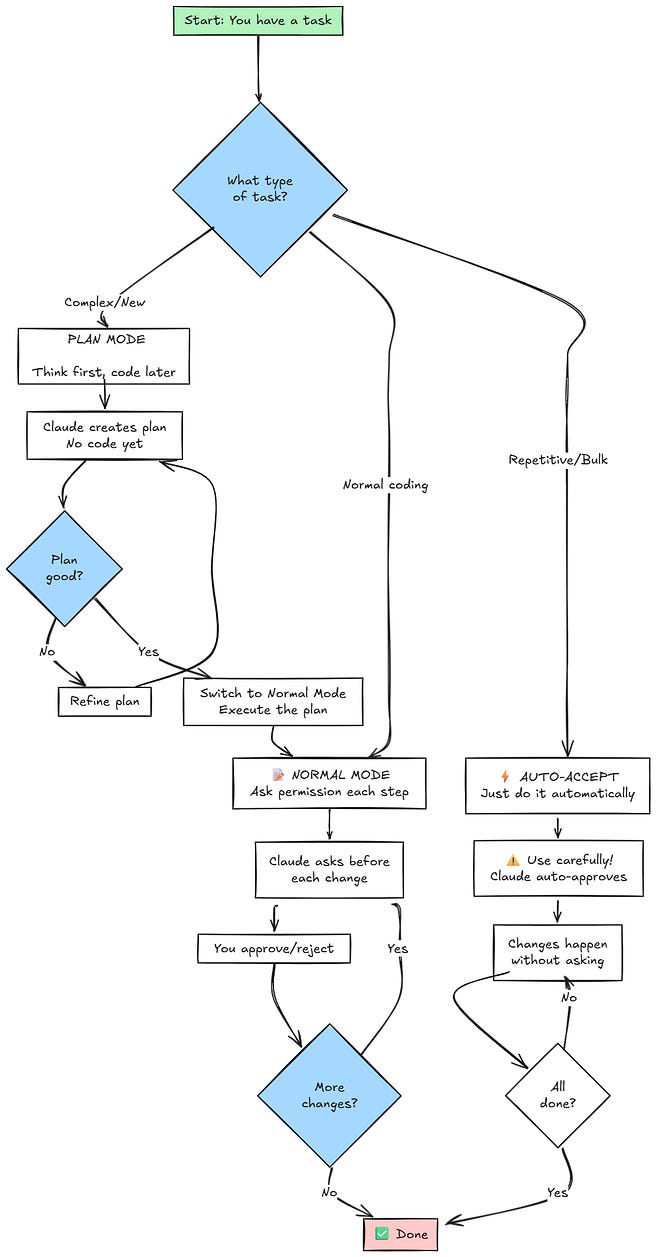
Plan Mode — “Think Before You Code” (Brainstorming)
Plan Mode is all about thinking first, coding later.
In normal operation, Claude often tries to plan if you ask for a complex task, but Plan Mode makes this explicit. When Plan Mode is on, Claude will not directly edit files; instead, it will discuss or outline the approach with you until you’re satisfied with the plan. Only after the plan is approved will you switch it back to coding mode to execute.
In practice, you might activate Plan Mode with a simple toggle (Shift+Tab in the CLI, as users report) or by literally telling Claude “Let’s plan this out first.”
When active, you can say things like “Claude, let’s brainstorm the steps for adding a user profile feature.
Don’t write code yet, just outline options.”
Claude might then use its “extended thinking” ability to produce a detailed plan. You can even prompt it with “think hard” to encourage a more thorough plan.
This is Claude’s version of taking a moment to really mull it over.
The benefit?
Fewer wrong turns.
Anthropic’s team notes that asking Claude to plan before coding significantly improves its performance on complex problems.
I personally use Plan Mode for big features or anything that touches many parts of a project.
It feels like we’re writing pseudocode or an outline together.
Once we agree on the game plan, I say “Looks good, let’s implement this,” and switch back to coding mode. Claude then follows the plan step by step. (And if it ever deviates, I can point back to the plan: “Actually, stick to the plan we agreed on.”)
Auto-Accept Mode — “Just Go Ahead” (Autopilot )
On the flip side, we have Auto-Accept Mode. This is like telling Claude,
“I trust you — go on autopilot for now.”
When Auto-Accept is enabled, Claude Code will stop asking you for yes/no at every step and just perform the changes automatically.
It basically accepts its own suggestions on the fly, speeding up the process for routine or extensive tasks.
For example, let’s say you asked Claude to fix all the spelling typos across a large document or add a formatting step to 20 different files. Approving each file change 20 times could get tedious. In Auto-Accept Mode, Claude would just make all the edits in one flow, only stopping if it hits something unexpected.
Users report you can toggle this mode with a key combo (Shift+Tab, cycling through modes).
When active, you might see a message like “Auto-accept ON — I will apply changes without prompting.”
Now, you can sit back and watch it do the boring stuff quickly.
However — and this is important — use this mode carefully. Only do it when you’re pretty confident Claude will do the right thing, or when the changes are easy to review after. As Anthropic’s guidelines suggest, auto-accept is best for trusted, minor changes where you want to move fast. The nice thing is you can turn it off anytime to regain manual control.
To sum up the modes in a fun way:
Plan Mode = careful navigator: “Let’s chart the journey before we start driving.”
Normal Mode = driving with GPS: “We have a route, but I’ll confirm each turn.”
Auto-Accept Mode = partial autopilot: “Follow the route automatically, I’ll just supervise.”
Claude Code lets you switch between these styles easily. In one session, you might brainstorm (Plan), then execute step by step (Normal), and maybe cruise through repetitive edits (Auto) — all as needed.
This flexibility is part of why Claude Code feels like a real collaborator; it adapts to how you want to work.
You’re the Boss
Staying in Control and Avoiding AI Pitfalls
We’ve touched on this throughout, but it’s worth emphasizing: even though Claude Code can automate a ton, you are still in charge.
Keeping the “human in the loop” is crucial for both quality and safety.
Here are some friendly reminders and tips to ensure a smooth experience:
Always review what Claude proposes. Especially in normal mode, read those diffs and descriptions. They’re usually understandable. If Claude says “I will run
rm -rf /” (just kidding, it shouldn’t ever do that!), you’d obviously say NO. More realistically, if it says “Deleting the database file to rebuild it,” double-check if that makes sense before saying yes.If unsure, ask! Don’t hesitate to interrogate Claude. “Why are you creating a new library here?” “What does this command do?” It will happily explain its reasoning. This not only keeps it accountable but also helps you learn.
Keep backups or use version control. If you know Git, use it — Claude can even integrate with Git seamlessly (committing changes, making branches, etc.). If not, at least keep copies of important files before heavy Claude usage. While I haven’t personally had Claude ruin a project, it’s good hygiene. Think of it like having an undo button.
Avoid “YOLO” mode as a beginner. Claude Code has a flag
--dangerously-skip-permissionswhich, as the name implies, skips all those confirmations. It’s essentially fully autonomous mode. This might sound tempting (“wow, no interruptions!”) but do not use this unless you are experimenting in a throwaway environment. Anthropic explicitly warns this can be risky – the AI might execute something harmful or delete data if it misinterprets your request. As a newbie, you want those safety nets. The regular flow is usually fast enough.Be specific with instructions to avoid ambiguity. Ambiguity is the enemy of getting what you want. For example, saying “make it better” is too vague — Claude might optimize the wrong thing. Instead, “make the page load faster by reducing image size” is clear. Specific instructions lead to better results. If you find Claude doing something unexpected, it might have misunderstood a vague request.
Know when to step in. Once or twice, I had Claude get confused (especially in a very large project) and it started going in circles or making a mess. Don’t be afraid to stop it (Ctrl+C in terminal) and manually intervene. You can fix a bit yourself or simply restart the session with a clearer head. It’s not a failure — even expert programmers sometimes have to reset and rethink, and so can you (and the AI).
Leverage Q&A mode for understanding code. Claude can answer questions about the codebase like “Where is the user login check happening?” or “How does function X work?”. This is gold for a beginner joining an existing project or even understanding what Claude wrote. Use it to keep yourself informed and in control of the narrative of your project.
In short, treat Claude Code as a powerful assistant, not an infallible wizard. You’re working with it. The fact that it asks your permission and waits for your input is by design — you’re the pilot, it’s the co-pilot. This collaboration will help you avoid bad AI habits like blindly accepting everything or over-relying on it without comprehension. By actively guiding and questioning the AI, you’ll not only get better results, but you might also find yourself growing more confident in tech literacy.
To sum up, that’s a lot of ground covered! If it feels a bit overwhelming, that’s okay — you can always refer back to this guide and take it step by step. Remember:
Claude Code is like a friendly coding buddy.
No coding experience? No problem.
Stay curious and keep control.
At the end of the day, even total beginners can build amazing things with AI tools like Claude Code.
The barrier to creating software has never been lower. If you have an idea — whether it’s a personal website for your art, a tool to help your community, or the next big startup concept — you now have a superpower at your disposal to bring it to life.
Don’t let the fact that you “can’t code” stop you. With Claude Code, your ideas are the star of the show; coding is just the behind-the-scenes magic that happens via AI.
So my challenge to you: give it a try.
Programming has often been compared to a form of art or creative expression. With tools like Claude Code, it’s an art form open to everyone, not just those who spent years mastering syntax. If you can dream it and describe it, you can build it. So go forth and create!
Happy coding!